Prompt your students to share your course landing page with their friends on Facebook, Twitter, or LinkedIn!
In this article:
Enabling Social Sharing for All Courses
Enabling Social Sharing for Individual Courses
How to Remove Thinkific Branding on Social Sharing
About This Feature
Encourage your students to share your course landing page on social media to increase exposure and help gain new enrollments! Turning Social sharing on will prompt students to share your courses with their friends on Facebook, Twitter, or LinkedIn - directly from the Course Player.
Social sharing can be enabled globally, for all courses, and on a course-by-course basis. Messaging to accompany students' shared posts can also be set globally and at the course level.
When Social sharing is enabled, students will see a share button in Chapter and Course Completion popups:
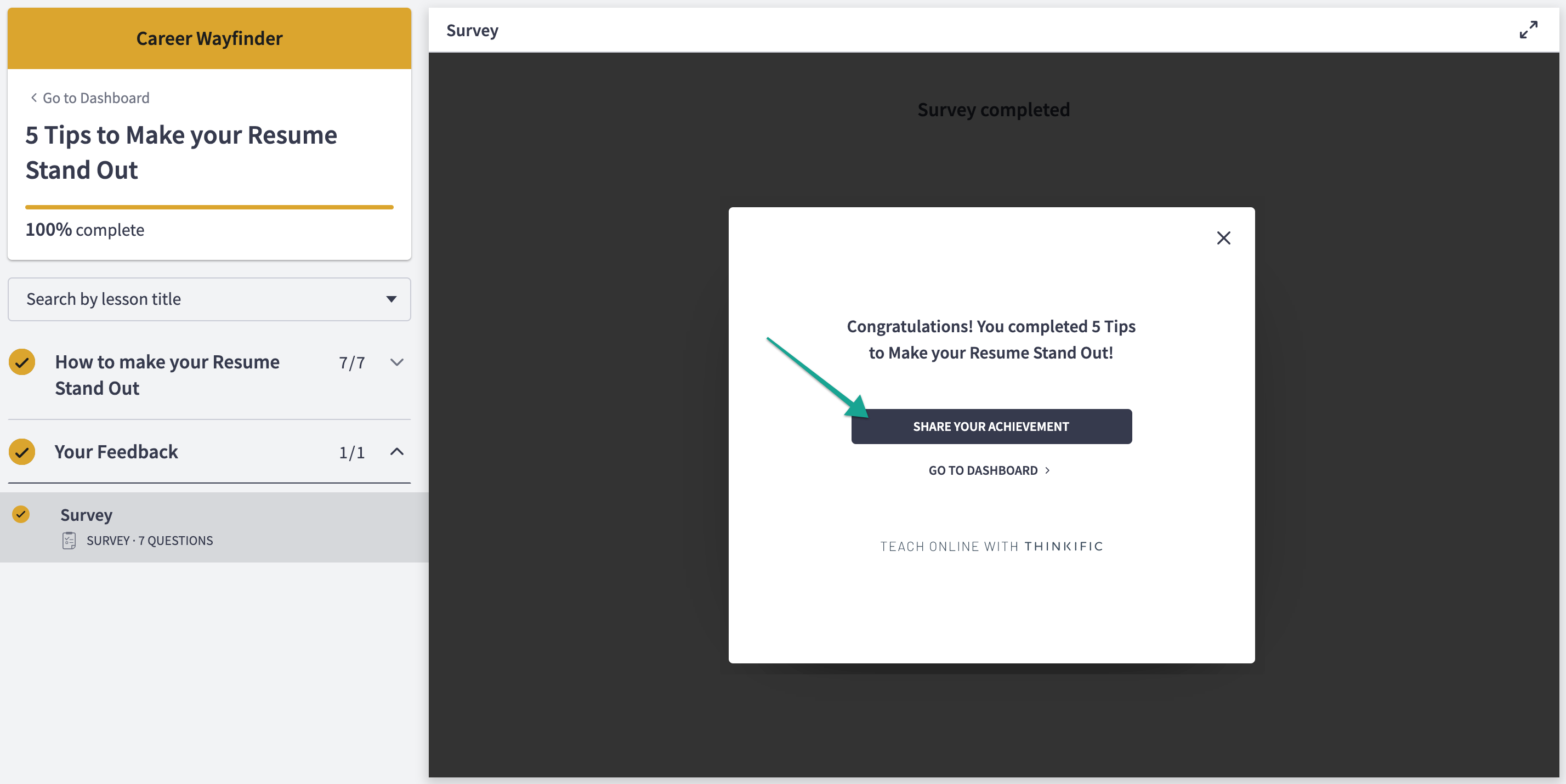
Clicking Share Your Achievement will then allow them to copy your custom social sharing text, choose the platform they would like to post on or copy a direct link to your course landing page:
How to Turn on Social Sharing
Admin Permissions
- The Site Owner and Site Admin(s) are able to enable Social sharing for all courses
- Course Admin(s) are able to enable Social sharing for any courses they are the admin for
Enabling Social Sharing for All Courses
- Select Settings from the menu on the left-hand side of your Admin Dashboard
- Select the Learning content tab
- Check the box for Social sharing at chapter completion to enable Social sharing pop-up messages every time a student completes a chapter in your courses
- Check the box for Social sharing at course completion to enable Social sharing pop-up messages when a student completes one of your courses
- Optional: Check both boxes to enable Social sharing pop-up messages at the end of every chapter in every course and at the end of every course
- Optional: Edit the text in the Social sharing text field to customize the message shown alongside your course link when students share it on Facebook, Twitter, or LinkedIn
- Click to Save

Settings and messaging enabled for Social sharing in your Site Settings will apply globally to all courses' Social sharing messages unless you modify these settings or messaging in a course's individual settings. See instructions below for how to set course-specific Social sharing messages.
Enabling Social Sharing for Individual Courses
- Select Manage Learning Content from the menu on the left-hand side of your Admin Dashboard
- Click on the Courses tab
- Click on the Course Card for the course you'd like to edit
- Select the Settings tab
- Select the Course progress & completion tab from the left menu and scroll down from the Course Completion settings to Social sharing
- Check the box for Social sharing at chapter completion to enable Social sharing pop-up messages every time a student completes a chapter in this course. Note: This setting will already be selected if you've previously enabled Social sharing from your Site Settings.
- Check the box for Social sharing at course completion to enable Social sharing pop-up messages when a student completes this course. Note: This setting will already be selected if you've previously enabled Social sharing from your Site Settings.
- Optional: Check both boxes to enable the Social sharing pop-up messages at the end of every chapter in this course and at the end of this course
- Optional: Edit the text in the Social sharing text field to customize the message shown alongside your course link when students share it on Facebook, Twitter, or LinkedIn
- Click to Save

Social sharing messaging for individual courses will show as Default when it matches with the site-wide Social sharing messaging set in your Site Settings. If the Social sharing messaging for a course shows as Default, it will be updated with any changes to this site-wide messaging.
How to Remove Thinkific Branding on Social Sharing
Follow the instructions in our article on Removing Thinkific Branding to remove the Teach Online with Thinkific text at the bottom of Social sharing pop-up messages in the Course Player:

How to Test Social Sharing
If you'd like to test out how Social sharing works, you can simply Preview Your Course as a Student and complete a chapter or course to see the share prompt!
You can also Create a Test Student Account and run through the course.
Important Considerations
- In order for students to see a share option in your course, you must have Chapter Completion Messages turned on.
- If you have turned on a Custom Completion Page for your course, there will not be a social share prompt at the end of the course, however it will still be visible at the end of each chapter.
- We do not recommend turning on this feature if you are using Private or Hidden Courses; it will allow existing students to share links straight to your course landing page.
- Your social sharing text will automatically appear when sharing to Facebook or Twitter. Students will have to copy the text from the social share popup when sharing on LinkedIn.