If you have an existing website (e.g. hosted on Squarespace, Weebly, Wix, etc) and want to integrate it with your Thinkific website, you're in the right place! We'll walk through different ways to create a seamless and branded experience between your two sites.
In this article:
Personalize Your Thinkific URL
Link Directly to Your Thinkific Checkout
Linking From Your Navigation
We'd recommend adding a navigation item on your external site called "Products" that links out to your Thinkific site. Then, on your Thinkific site, you can set your logo in your header to link back to your website.
Brand Your Thinkific Site
Head to the Theme Settings in Site Builder to customize the site colors to match your existing site. To do this:
- From your Admin Dashboard, select Design Your Site
- In Site Pages, select a page to open in Site builder by clicking the pencil icon
- Once Site Builder has opened, click the Theme Settings tab to access the settings for your theme:
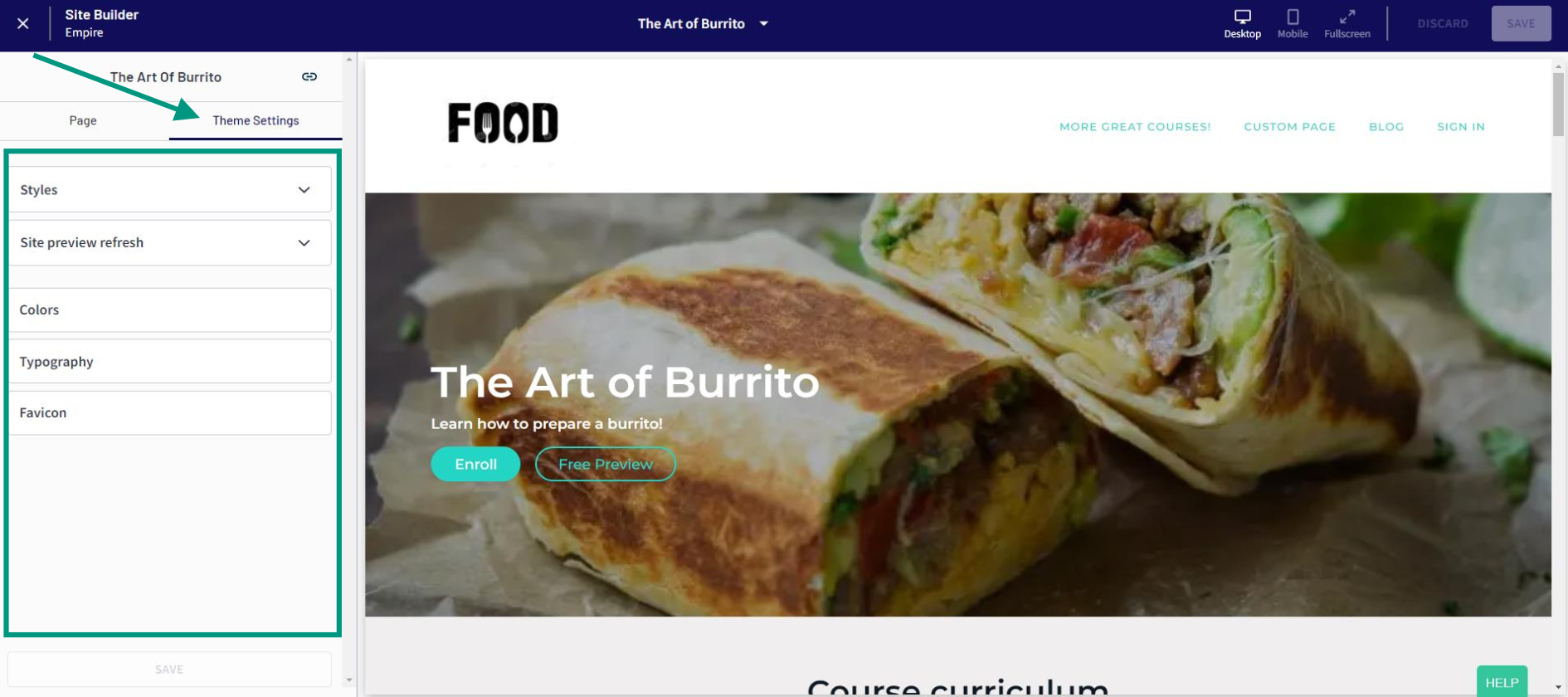
Here's a great example of how one business has carried over their logo and colours from their external site to Thinkific:

To learn more about the features and options available in your Theme settings, take a look at our Theme Settings article.
You can also customize your Thinkific site header and images in your Thinkific landing pages to align with your branding! Check out:
- Customize Your Site Header
- Build Your Home Page
- Build Your Course Landing Page
- Build Your Bundle Landing Page
- Build your Community Landing Page
Personalize Your Thinkific URL
Our custom domain feature allows you to have your Thinkific site available at your own domain; so for example, if your existing site is at www.yourdomain.com then you can customize the URL for your Thinkific site to have it at products.yourdomain.com or another subdomain of your choosing.
That way, as far as your students are concerned, everything will appear to be handled on a single website. This is important for building trust with your audience and creating a seamless brand experience between your existing website, and the Thinkific website.
Remove Thinkific Branding from Your Thinkific Site
If you're looking to further personalize your Thinkific site, you're able to remove the Thinkific branding from your site pages, so your customers can focus on your brand alone.
Linking Directly to Checkout
If you are using sales pages on your external site to sell your Thinkific products, you can link directly to the Thinkific checkout to create an even more seamless transition from external landing pages to your Thinkific site.
Learn more about that here: Using External Sales Pages with Your Thinkific Checkout