Sumo is the place to find a bunch of free apps to help you market your content — tools for increasing website traffic, email signups, social sharing, and more!
The Sumo app gives you access to Sumo's own selection of mini-apps, which provide a variety of tools for marketing and customer tracking. Popular apps include an email list builder and social media share buttons.
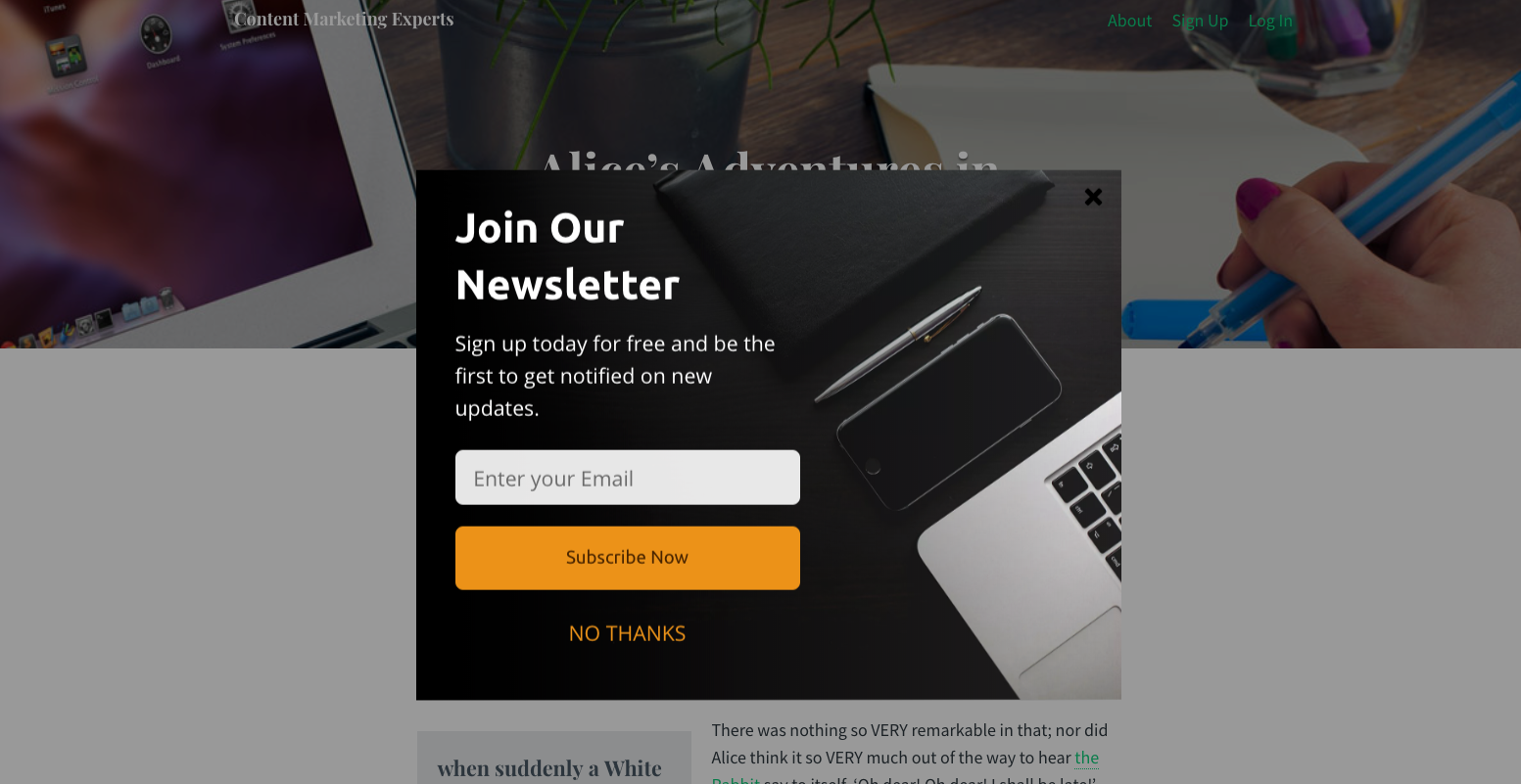
List Builder Example:
Share Buttons Example:

Install the App
- Create a Sumo account
- Copy the Install code provided by Sumo
- Locate Sumo in the Thinkific App Store
- Click to Install the app
- Review the Permissions & App details page
- Click Accept & Install to continue
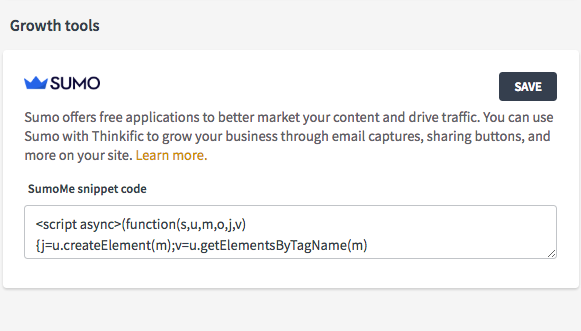
- This will return you to the Sumo app details page in Thinkific — copy the Install code from step 2 into Sumo code snippet
- Click Save
All done! The Sumo app is now installed in Thinkific, but you will need to return to Sumo and get started on setting up your form.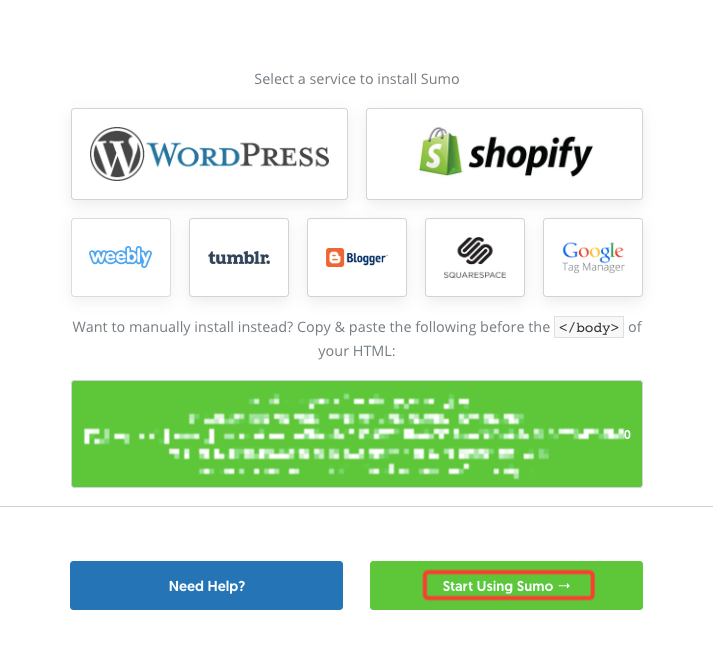
Once it is published and ready to go, it should appear live on your Thinkific site!
Frequently Asked Questions
Why am I seeing this error while in Site Builder: "More than one instance of Sumo is attempting to start on this page. Please check that you are only loading Sumo once per page"?
Your Sumo pop-up should appear to be working correctly when you Preview Website.